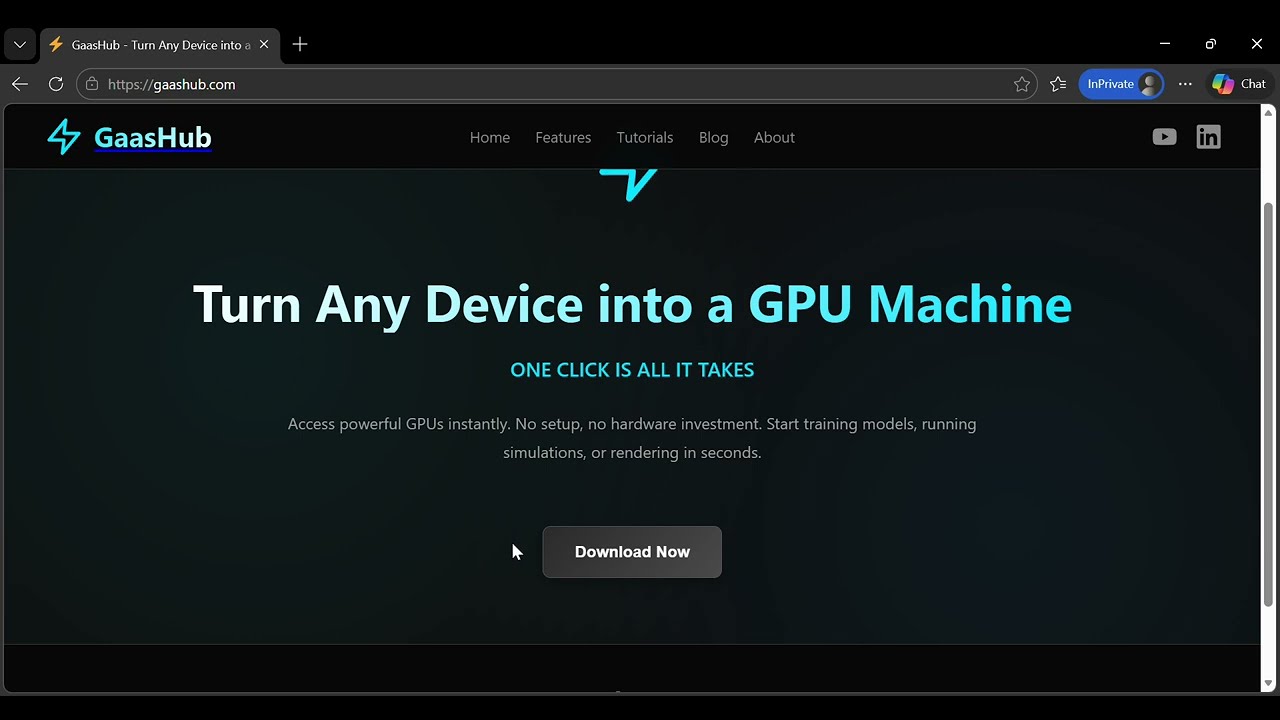
Your Device Just Got a GPU.
No new hardware. No complex setup. Any device - Windows, Mac, Linux, or Raspberry Pi - instantly gets GPU power. One click, that's it.
"Think of GaasHub like Spotify for GPUs - you don't need to own the hardware to experience it."
 FEATURES
Every device deserves a GPU.
Six reasons GaasHub is changing how the world accesses GPU power.
Any device. Truly any device.
From a Windows gaming laptop to a MacBook to a Raspberry Pi - if it runs our app, it now has a GPU. No platform-specific limitations.
No new hardware needed.
Your existing laptop, desktop, or Raspberry Pi is already enough. GaasHub adds GPU power on top - no SSH, no Docker, no configuration. Install, click Start, run.
Mac users: you can finally run CUDA code.
Apple Silicon M1/M2/M3/M4 chips don't support CUDA natively - and until now, Mac users had no good solution. GaasHub lets you run your existing CUDA code completely unmodified on your Mac. No rewrites. No compatibility layers. No virtual machines. It just works.
Your €35 Raspberry Pi now has a GPU.
A €35 board now performs real-time GPU inference. Robotics, computer vision, edge AI - workloads that previously required dedicated hardware now run on devices that fit in your hand.
All the power of cloud GPUs. None of the complexity.
AWS, Lambda Labs, RunPod - powerful but painful. You spend more time setting up than actually building. GaasHub gives you the same GPU horsepower with a setup time measured in seconds, not hours.
Sustainable Computing.
We provide GPU resources from existing idle GPUs across the globe. We aim to reuse all idle GPU capacity and provide it to users who need it - reducing the carbon footprint of data centers while offering a cost-effective solution.
WHAT YOUR DEVICE GAINS WITH GAASHUB
One Click GPU Access
No configuration, no terminal wizardry, no SSH keys. Click Start in the GaasHub app and your device is connected to a real GPU instantly. Prefix any command with gaashub and it runs on the GPU remotely.
Works With Your Existing Code
You don't rewrite anything. Your existing Python scripts, CUDA code, PyTorch models, TensorFlow pipelines - they all work as-is. GaasHub is invisible infrastructure.
Universal Platform Support
Windows, Mac (Intel and Apple Silicon), Linux (x86, ARM64, ARMv7). One product, every major platform. No platform-specific versions or limitations.
CUDA on Apple Silicon
M1, M2, M3, M4 chips don't support CUDA natively. GaasHub solves this completely - run unmodified CUDA code on your Mac without rewrites, VMs, or compatibility layers.
Edge Device & Robotics Support
Deploy on Raspberry Pi, BeagleBone Black, and other ARM development boards. Give your robot or embedded device access to real GPU compute in real time with a single command.
Supports All Major ML Frameworks
Confirmed working with PyTorch 2.x, TensorFlow 2.x, JAX, and standard CUDA 11.x/12.x. If it runs on NVIDIA, it runs on GaasHub.
 PROCESS
HOW YOUR DEVICE GETS A GPU
Install
Download and install GaasHub for your platform. Setup takes under a minute.
Start
Open GaasHub and click the Start button. You're now connected to a GPU.
Run
Open a terminal and prefix your command with gaashub. That's it.
gaashub train_model.py Anyone whose device wasn't powerful enough - until now.
For ML Students & Researchers
Cannot afford a GPU laptop? Your existing machine just became a GPU machine. Run experiments, train models, finish coursework - without buying anything new.
For Mac Users
Finally run CUDA code on your MacBook without any modifications. Stop losing time to compatibility workarounds.
For Robotics Builders
Connect your Raspberry Pi or BeagleBone to real GPU compute. Enable real-time computer vision, inference, and CUDA workloads on edge devices.
For Indie Developers & Startups
Skip the AWS/GCP learning curve entirely. Get GPU access in seconds and get back to building your product.
Technical Specs
 COMPARISON
How We Compare
Competitor data based on our own setup experience and public documentation. Last verified March 2026.
| Feature | GaasHub | RunPod | Vast.ai | AWS SageMaker | Google Colab |
|---|---|---|---|---|---|
| Setup time | Seconds | 30-60 mins | 30-60 mins | Hours | Minutes |
| Steps to first run | 1 | 20+ | 20+ | 50+ | 3-5 |
| Windows support | |||||
| Mac support | |||||
| Linux support | |||||
| Raspberry Pi / Edge boards | |||||
| CUDA on Mac (Apple Silicon) | |||||
| SSH / Docker knowledge needed | No | Yes | Yes | Yes | No |
| Run unmodified code | |||||
| Technical expertise required | Beginner | Advanced | Advanced | Expert | Beginner |
| Best for | Everyone - beginners to pros, all platforms | Linux-savvy ML engineers | Budget-focused Linux users | Enterprise teams with DevOps support | Browser-based notebook users |
Time to First Run
Time from install to first GPU job running.
Real-world Inference
Latency benchmarks across common robotics and AI tasks.
We're running benchmarks across ResNet50, YOLOv8, and LLM inference tasks on RTX 3060/3070 nodes. Results coming end of April 2026.
Training Speed
Comparison of local CPU vs GaasHub GPU for training tasks.
PyTorch and TensorFlow training benchmarks on RTX 3060/3070 in progress. Results coming end of April 2026.
* Benchmarks based on internal tests and public specifications. Individual results may vary.
Give your device a GPU. Right now.
Download takes less than a minute. Start your first GPU job today.
Get updates on the GPU revolution.
Get notified when we add new GPU nodes, features, and tutorials. No spam - just the good stuff.